Interactive Projection Setup
Camera Calibration > Interactive Projection Wizard
Interactive Projection Wizard can be found in the Settings > Advanced menu. This step-by-step wizard will guide you through all stages of camera calibration and its synchronization with the projector.
Info
Although the Interactive Projection Wizard helps you through the entire calibration process, it is not required to complete the calibration process. You can set all the options contained in it yourself using the options available inService mode. This is described in the next section of the documentation (see Frame Source Settings and Projection Area Calibration).
Go to Menu > Settings > Advanced and select Interactive Projection Wizard.
The welcome screen will be displayed:

Follow the next steps according to the instructions you will see:


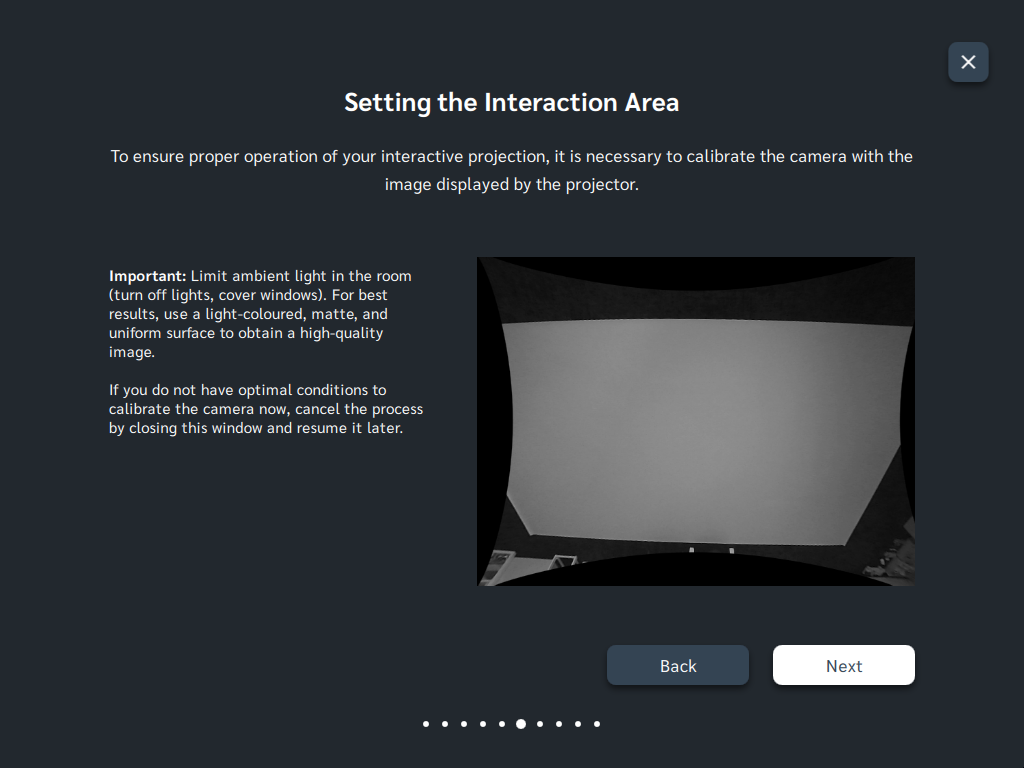


Your device is now ready for Interactive Projection mode.
Use the Motioncube Interactive Showcase collection (from Motioncube Store) of free apps to test your interactive installation.
Manage Consents
Control which external services can process your data.
Essential Required
These features are essential for the proper functioning of the website and cannot be disabled.
Anonymous Analytics Required
Required for collecting aggregated statistics that help us understand how users interact with our site. Data is fully anonymous, contains no personal information, and we do not use cookies.
Extended Analytics
Allows analyzing traffic sources (where you came from), marketing campaign parameters (UTM), and navigation paths across subdomains. We use a cookie (7 days) to preserve this data.
External Media
Allows loading content from external services like YouTube or Vimeo.
