Interactive Projection Setup
Depth Calibration > Quick Testing
Motioncube Interactive Showcase — Free App Collection
After launching Motioncube, you will see a list of recommended resources on the main screen that are worth exploring first.
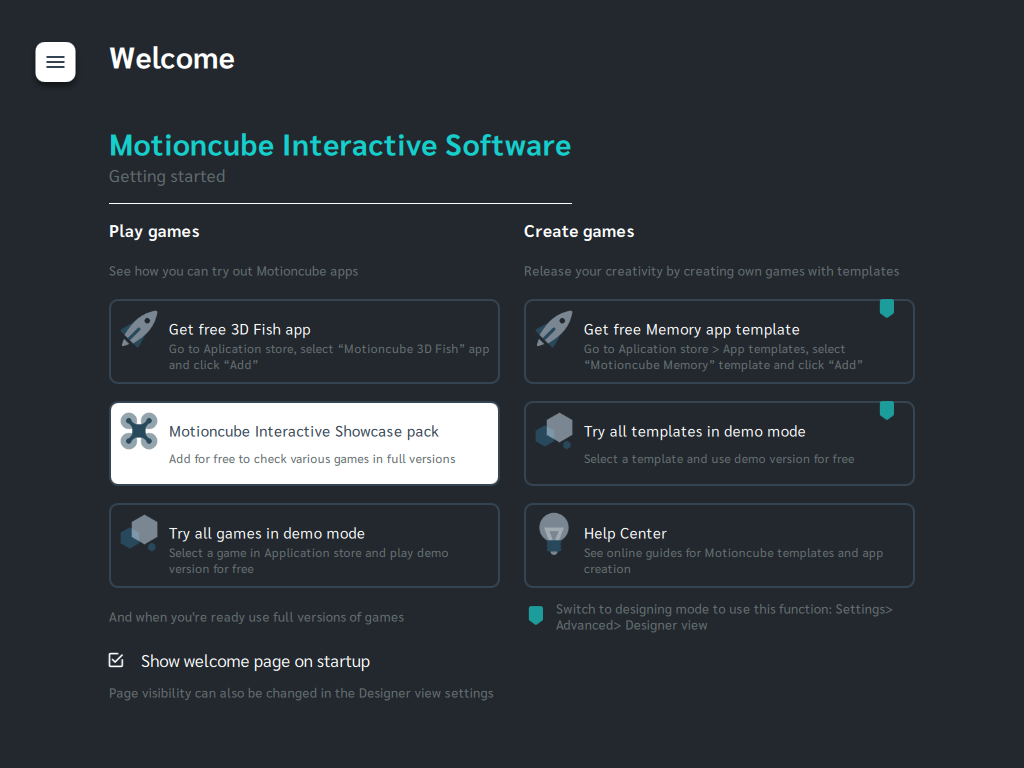
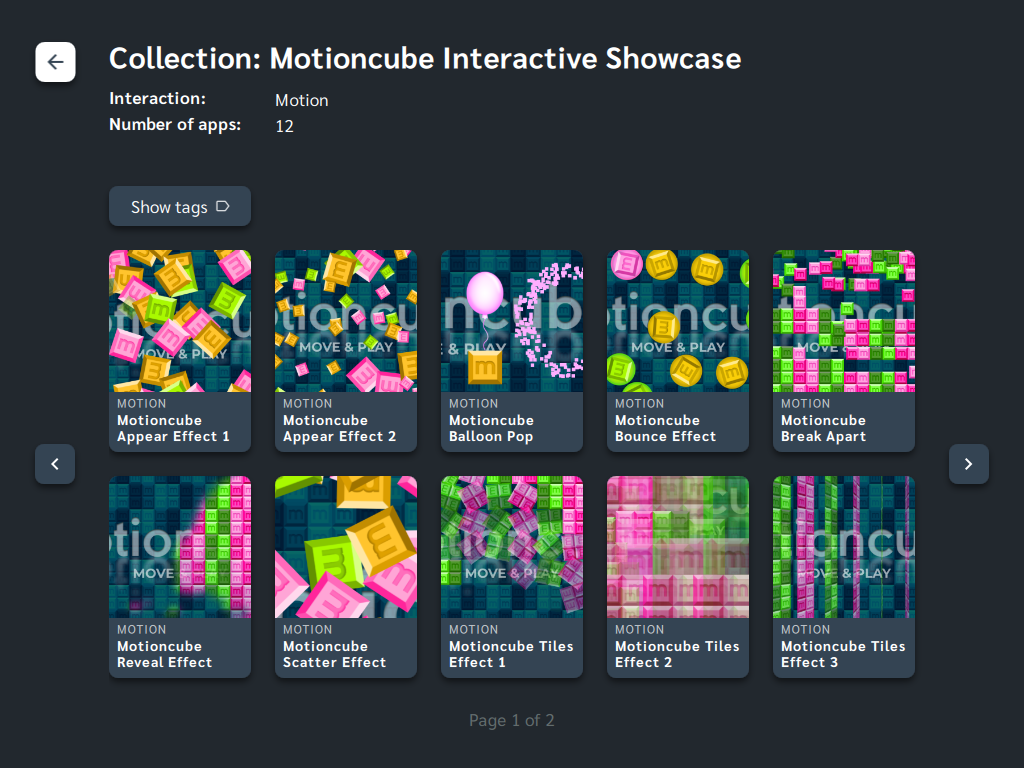
We especially encourage you to test the Motioncube Interactive Showcase app collection, which allows you to verify your interactive projection setup in action.
You can find it in the panel My App Library > Welcome, or directly in the online store at: https://store.motioncube.io/en/collection/motioncube-interactive-showcase.
To use free Motioncube resources, create a Motioncube account and log in to Motioncube Player (Menu > Log in).
Then install the Motioncube Interactive Showcase collection and test the included apps.
These are full versions of applications with no limitations.
If you also want to explore example app templates, switch to the Designer view (Settings > Advanced > Designer View) and check the available templates in the Motioncube Store.
Interaction Tester
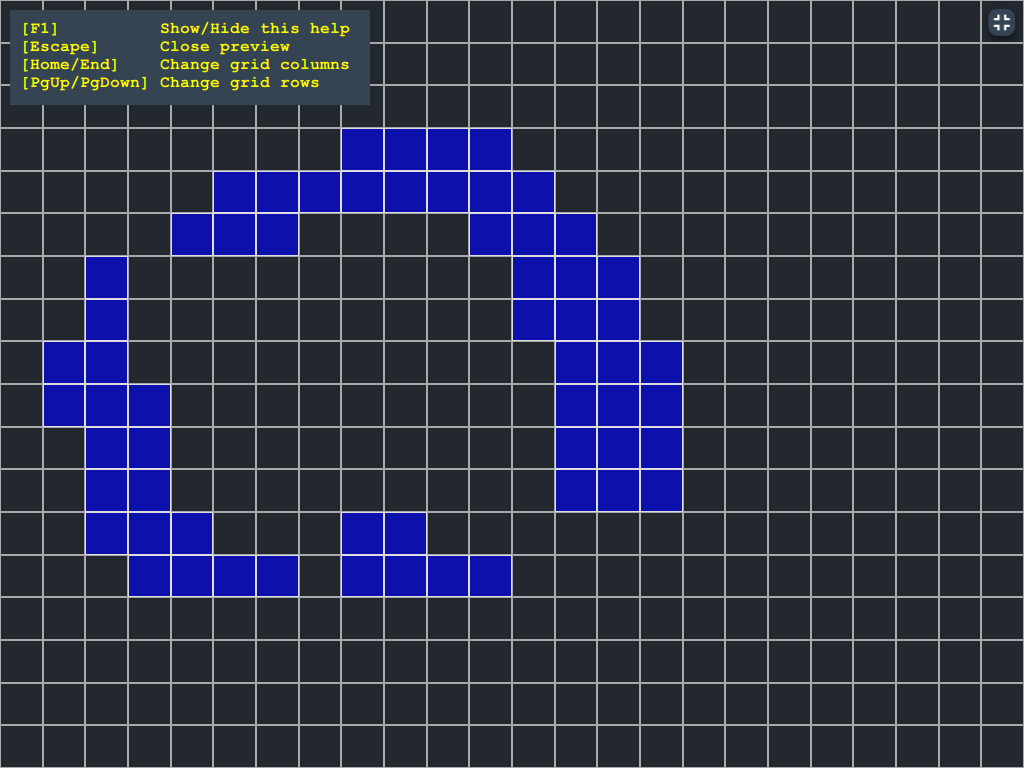
Whenever you want to test or purchase a new type of app, or if you notice issues with app interaction, run the appropriate tester to verify your setup’s capabilities and ensure proper calibration.
For motion detection mode (on floor, wall, or table), you can use the dedicated Motion Tester.
You can find it under Settings > Advanced. Check Service mode and open Tester: Motion detection.

Manage Consents
Control which external services can process your data.
Essential Required
These features are essential for the proper functioning of the website and cannot be disabled.
Anonymous Analytics Required
Required for collecting aggregated statistics that help us understand how users interact with our site. Data is fully anonymous, contains no personal information, and we do not use cookies.
Extended Analytics
Allows analyzing traffic sources (where you came from), marketing campaign parameters (UTM), and navigation paths across subdomains. We use a cookie (7 days) to preserve this data.
External Media
Allows loading content from external services like YouTube or Vimeo.
