Advanced configuration & administration
Safe Mode (WatchDog)
Motioncube provides advanced stability techniques implemented via the WatchDog mechanism. WatchDog monitors the Motioncube Player process and, in case of a failure, automatically restarts it to minimize downtime.
These techniques also handle startup failures of Motioncube Player, offering additional actions such as checking and applying updates and launching a remote assistance tool (if previously configured).
You start WatchDog mode using PlayerLauncher.
Launch
Start Motioncube in "Safe mode" (WatchDog enabled).

Shortcuts are located in:
%APPDATA%\Microsoft\Windows\Start Menu\Programs\MotionCube
Shortcut command structure examples:
# Example for Beam version
"C:\Program Files\MotionCube-v1-beam\app\PlayerLauncher.exe" -style Default --use-watchdog

# Example for Full version
"C:\Program Files\MotionCube-v1-full\app\PlayerLauncher.exe" -style Default --use-watchdog
General options & tools
In the system tray locate the "Motioncube" icon and click Watchdog.

UI Visibility
Enable this if you do NOT want the end user to see the Windows desktop during a crash/restart. A plain backdrop (Player theme color) is shown so service work is minimally noticeable.Advanced
Opens the detailed monitoring options (see next section).Restart without WatchDog
Restarts Motioncube Player in a non‑supervised (normal) mode.Reset settings
Restores WatchDog settings to their initial (post‑installation) defaults.
Advanced monitoring options
Open: Watchdog > Advanced
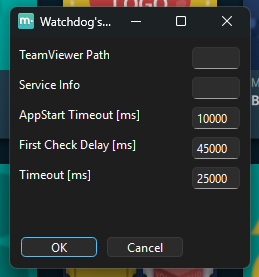
TeamViewer path
Set the path to a remote desktop support tool (e.g. TeamViewer) for assisted servicing.Information
Message displayed on the error screen. You can include e.g. a service phone number.AppStart Timeout [ms]
Delay after launcher start before WatchDog verifies Player startup. Example:10000means 10 seconds grace period during which Player is not yet monitored (time needed to register itself with WatchDog).First Check Delay [ms]
Time after which the first cyclic activity check occurs to confirm stable operation.Timeout [ms]
Interval between subsequent cyclic activity checks (maximum reaction time to a failure).
Possible scenarios
Motioncube Player startup failure
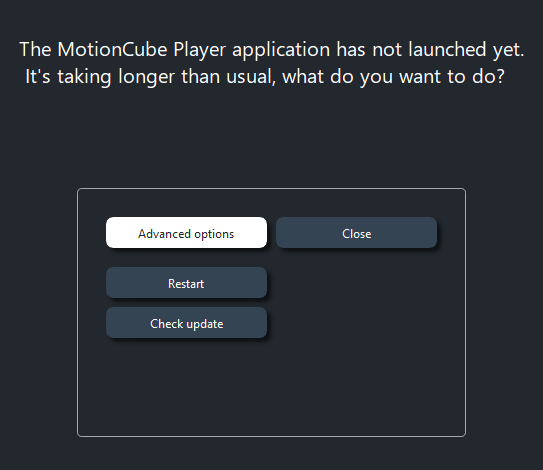
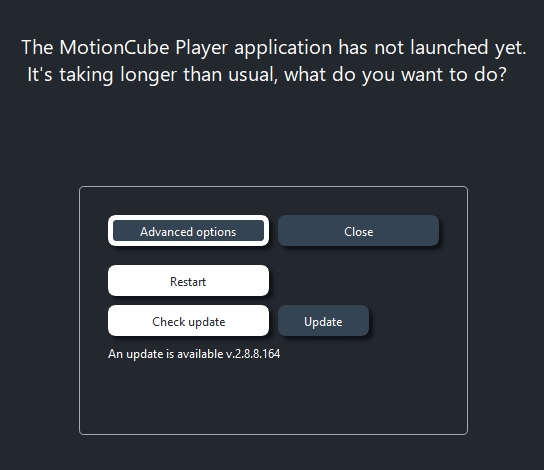
After PlayerLauncher starts, the system waits for the duration defined in AppStart Timeout. If Player startup is not detected within that period, a service menu is displayed allowing (among others) checking for software updates or initiating a remote support session.
Screens below illustrate this situation:
Full event flow is shown in the video:
(Watch in full screen at Full HD resolution for best clarity)
Motioncube Player startup failure
Watch directly on YouTubeError inside a single application
WatchDog also monitors applications launched within Motioncube Player. If an app becomes unresponsive or crashes, Player is restarted. Reaction time is governed by Timeout described above. The video below shows handling of an intentional error in a test application.
(Watch in full screen at Full HD resolution for best clarity)
Error inside a single application
Watch directly on YouTubeAdvanced
WatchDog configuration files can be edited manually in these locations:
Windows
%LOCALAPPDATA%\PlayerLauncher\MotionCube\WatchDog\config.iniLinux
~/.config/MotionCube/WatchDog/config.ini
Manage Consents
Control which external services can process your data.
Essential Required
These features are essential for the proper functioning of the website and cannot be disabled.
Anonymous Analytics Required
Required for collecting aggregated statistics that help us understand how users interact with our site. Data is fully anonymous, contains no personal information, and we do not use cookies.
Extended Analytics
Allows analyzing traffic sources (where you came from), marketing campaign parameters (UTM), and navigation paths across subdomains. We use a cookie (7 days) to preserve this data.
External Media
Allows loading content from external services like YouTube or Vimeo.
