Advanced configuration & administration
Power management
General guidance
After use, power off the device. This means turning off both the projector and the computer. Avoid sleep/hibernate modes.
Many peripherals (for example, depth cameras and other external accessories) can require special handling or re‑initialization after a sleep/wake cycle. Motioncube does not support sleep/hibernate workflows and cannot guarantee that applications will operate correctly (e.g., respond to interactive input) after resume.
Motioncube turn‑off function
In the Motioncube main menu (bottom), there is a Turn off item that powers down the device. Users can invoke it, for example, using the remote control.

Turning off the device requires confirmation with the user PIN (described in Access Control section).

Motioncube power settings
You can adjust how the Turn off function behaves in Control Panel → Service mode → Power tab.
Enter Service options, find the "Power" tab, then click the menu (hamburger) button as highlighted below:
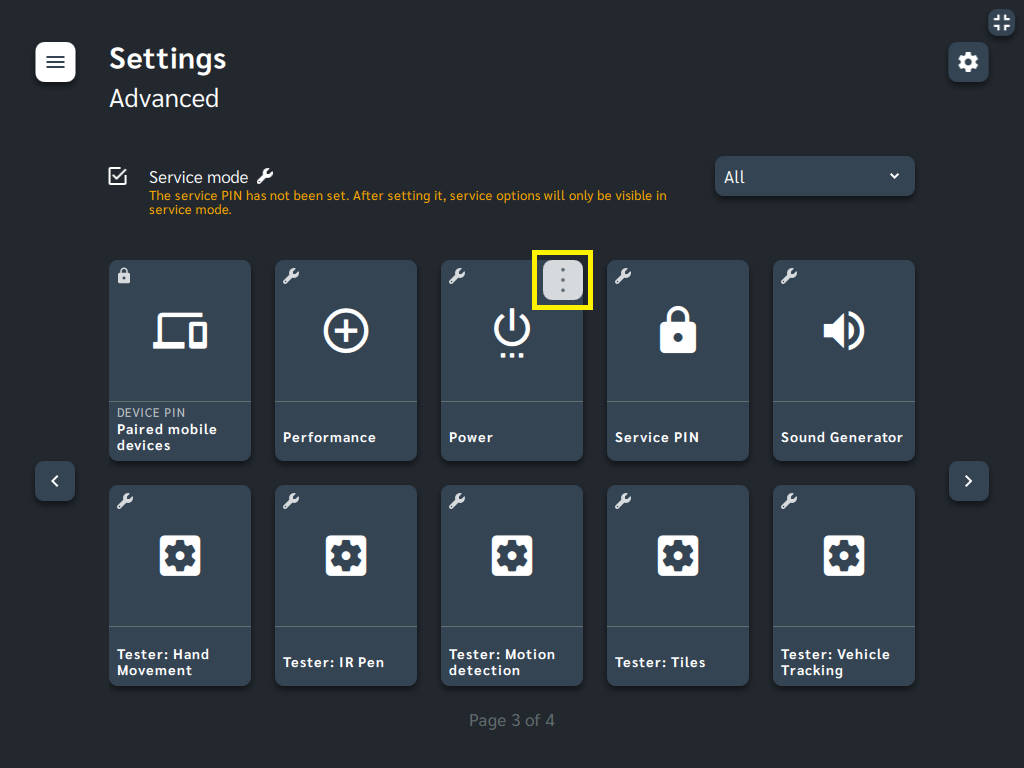
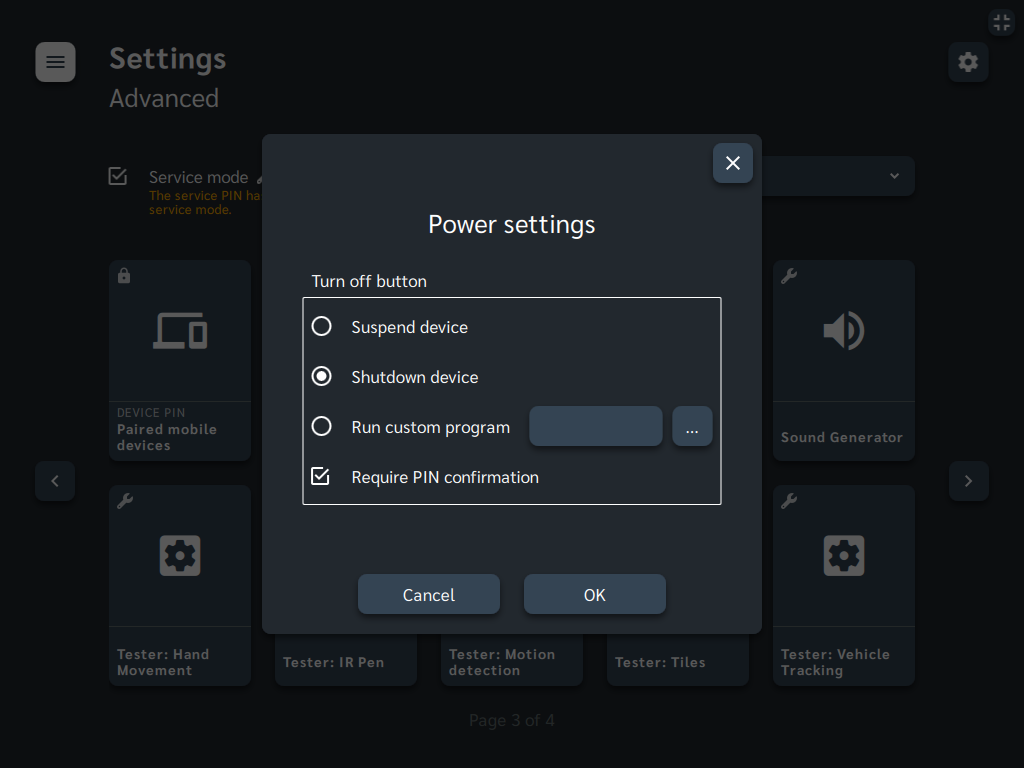
Functions available:
- Shutdown device — recommended when using peripherals (cameras, depth sensors, other accessories).
- Suspend device — consider for touch screens.
You can also specify the path to your own program or script to be executed when the Motioncube Turn off action is triggered. This can be useful if you prefer to manage resource release or power‑down behavior yourself (e.g., shutting down the computer).
Manage Consents
Control which external services can process your data.
Essential Required
These features are essential for the proper functioning of the website and cannot be disabled.
Anonymous Analytics Required
Required for collecting aggregated statistics that help us understand how users interact with our site. Data is fully anonymous, contains no personal information, and we do not use cookies.
Extended Analytics
Allows analyzing traffic sources (where you came from), marketing campaign parameters (UTM), and navigation paths across subdomains. We use a cookie (7 days) to preserve this data.
External Media
Allows loading content from external services like YouTube or Vimeo.
